OuiDire.app — Quick Guide (Desktop)
Where to start
- Your first action: upload a PDF or photos, or use your camera to take photos of paper documents, then automatically get cards by launching Run OCR.
- Once cards are visible, you can either annotate the cards yourselves or launch Call Gemini
- Double Run comes next when you want broader machine suggestions across both macro sets
- Audit, Intake / Map-1 Brite-Lite, Macros Constellation Map, and HOP / Map-3 become much more useful after several card annotations
Step 1 - Orient yourself in the top workbar
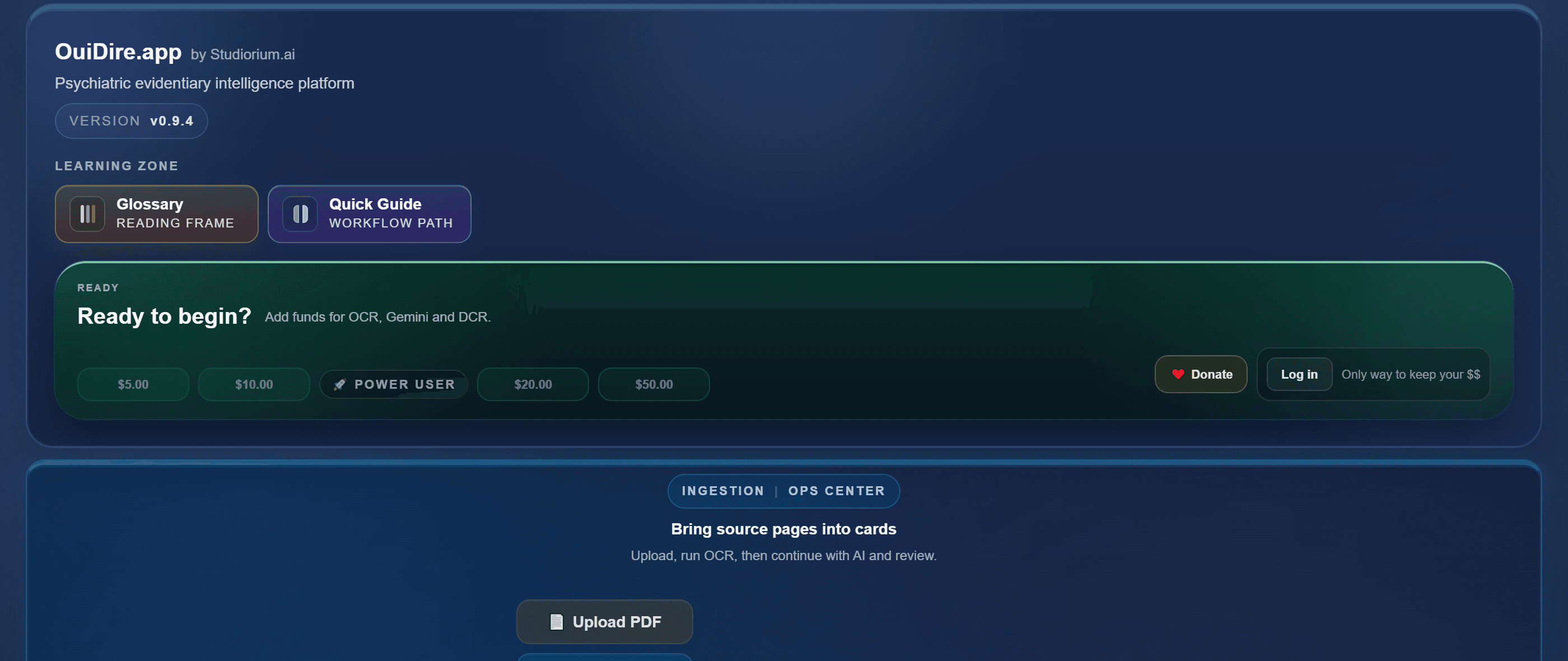
- Use Glossary when you need the reading frame
- Use Quick Guide when you need the workflow path
- The Ready to start panel is where you add credits to pay for API calls (OCR, Call Gemini, GPT)
- Login lets you keep your documents and balance from one session to the next
- Your first goal is simple: go from a PDF or photos of paper documents to several annotated cards
Step 2 - Import the document and run OCR
- Upload a PDF
- If you are working from paper documents, you can also Upload Photos already saved on the device
- On desktop, you can also Take Photos with a connected camera
- When you upload, the page count is calculated automatically
- Then launch Run OCR
- OCR turns source pages into usable Studiorium cards
- Until cards exist, there is no point launching AI
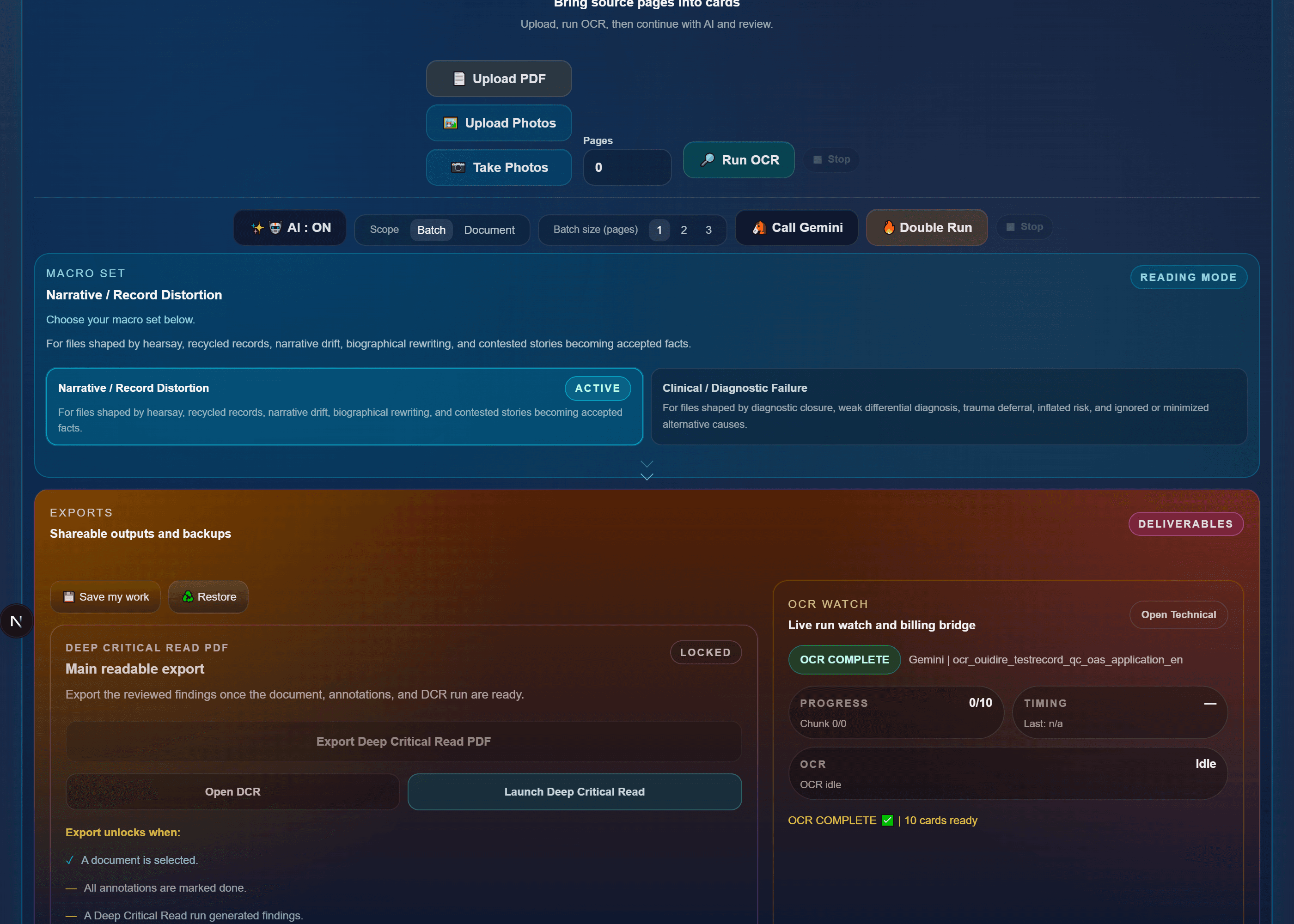
Step 3 - Choose the reading mode and launch AI
- The Macro set controls the active 8 macros
- The Macro set is a reading decision based on your case file
- The Macro set changes the reading grid
- For now, there are two non-exclusive choices: one more narrative set, and one more clinical set
- You can run both sets one after the other
- Make this choice before launching Call Gemini if you want the workflow to stay coherent
- Before launching the run, choose the Scope
- In Batch mode, you can analyze 1, 2, or 3 pages at a time; in Document mode, you run the analysis on the full document
- The wider the scope, the more compute it uses and the slightly more it costs
- Call Gemini runs Gemini on the current macro set to surface more suggestions in that mode
- Double Run runs Gemini on both macro sets, then gathers the results in Gemini Digest card by card
Step 4 - Navigate in Intake / Map-1 Brite-Lite
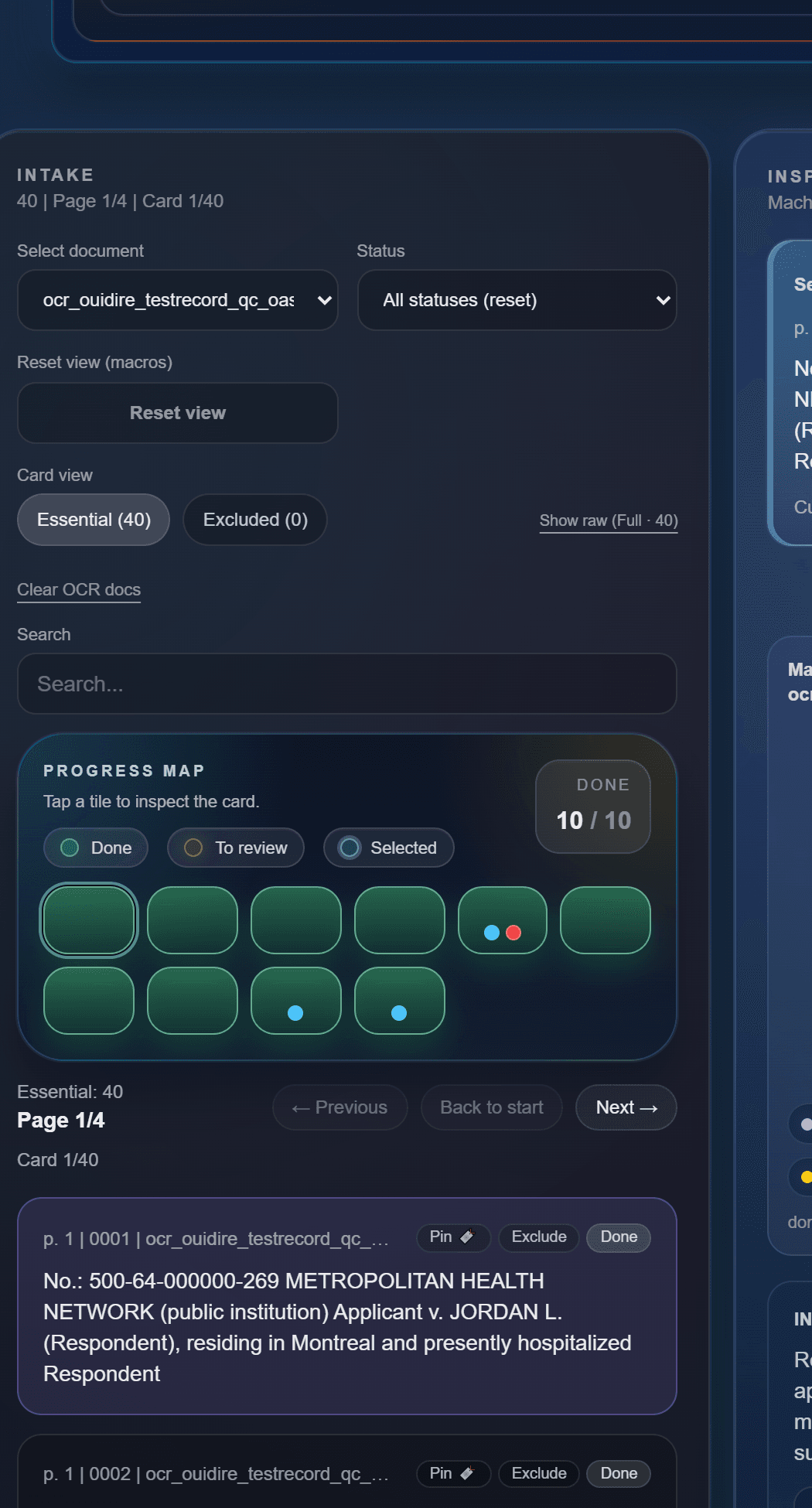
- Intake is the left column
- It helps you choose the active document, filter cards, search, and quickly return to a specific card
- Map-1 Brite-Lite acts as a visual reference to track work progression and open a card by clicking its tile
- Use Intake when you want to decide which card to review next
Step 5 - Review the card in Inspect
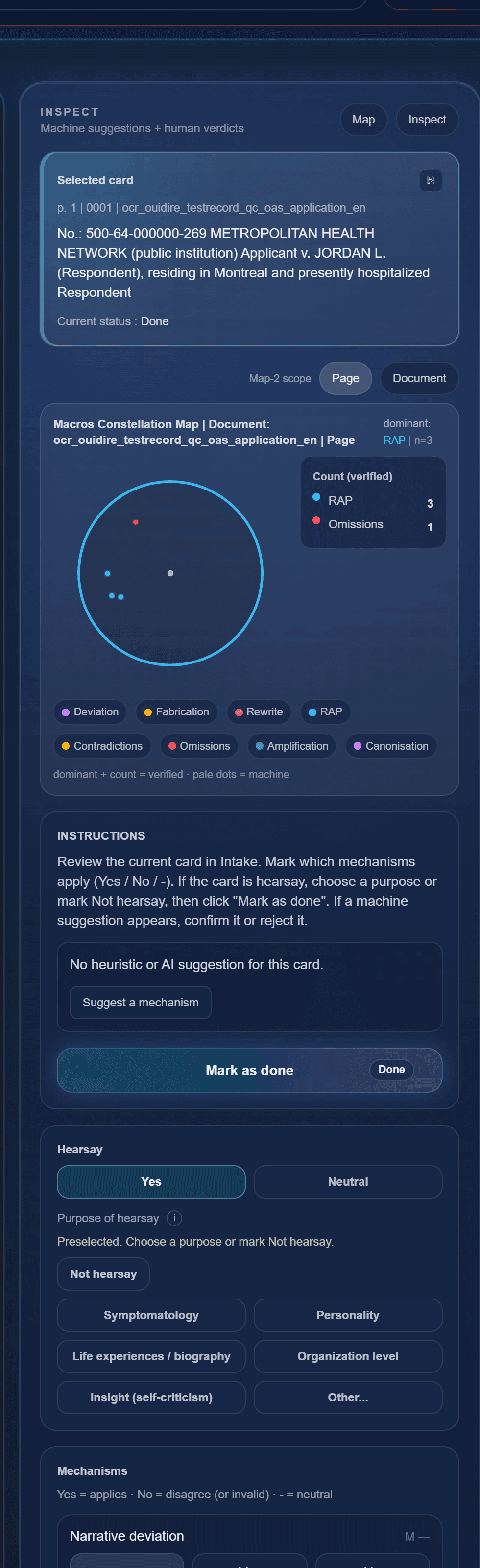
- Inspect is the center column
- Read the selected card
- For hearsay, choose every purpose of hearsay that applies
- If the card is not hearsay, mark Not hearsay
- For Macros, mark the macros from the active set as Yes / No / — based on what applies on that card
- Review machine suggestions if they exist
- Confirm or reject machine suggestions when they help
- Mark the card as done
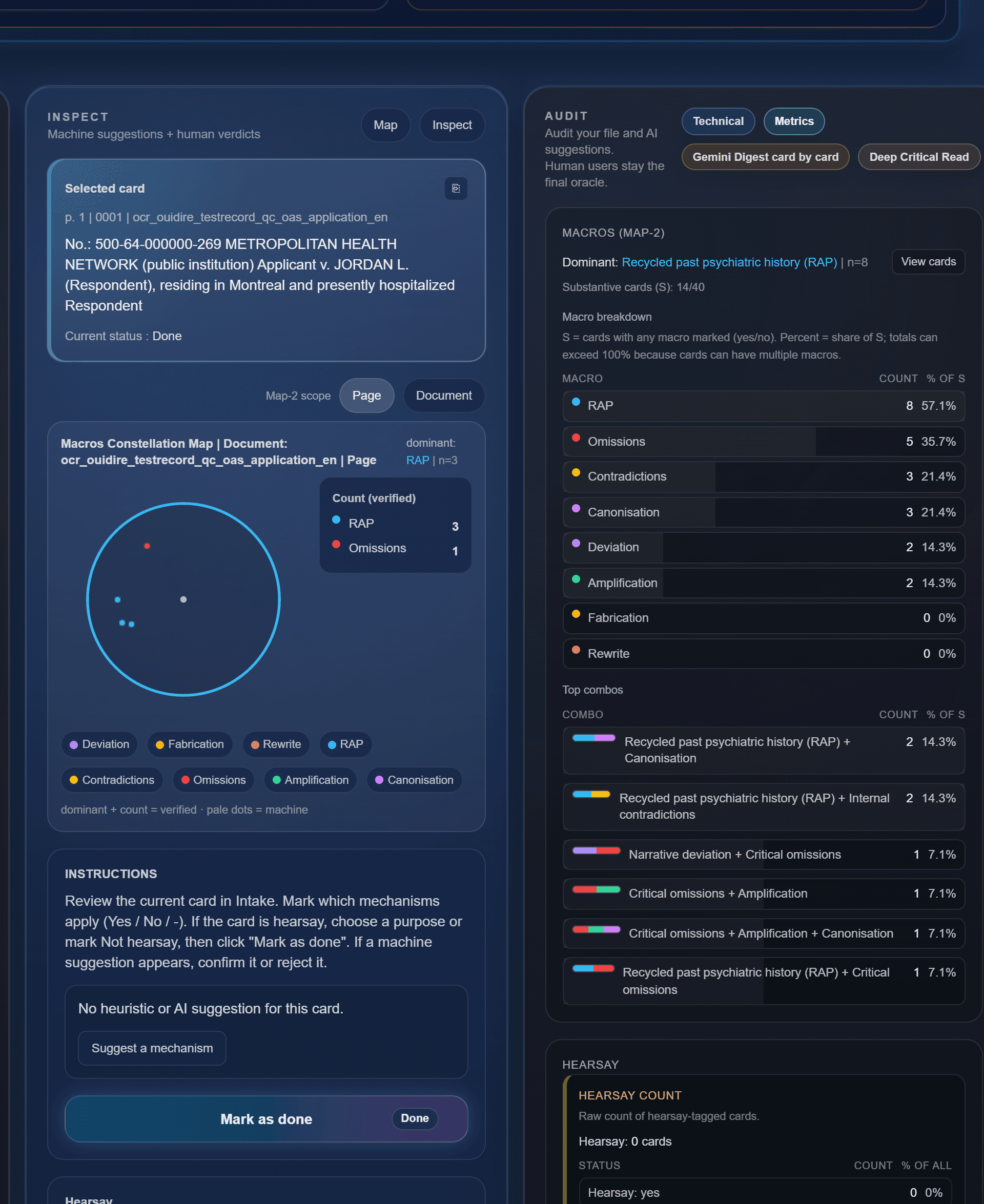
- On desktop, the Macros Constellation Map (Map-2) remains integrated inside Inspect
Step 6 - Control quality in Audit
- Audit is the right column
- The Technical section displays technical details so the user can stay informed about what is happening at all times
- Technical shows what is still running, what is done, and current activity for OCR, AI, or Deep Critical Read
- Metrics shows dominant patterns, counts, and top combos
- Metrics and metric combos are clickable
- Deep Critical Read triggers an additional GPT analysis, so it also uses credits
- Use Deep Critical Read mostly when your main annotations are already well advanced or finished
- Deep Critical Read analyzes more finely with GPT across 30 micro-tags
- It can surface concrete findings, reading details, and additional suggestions
Step 7 - Save, restore, and export
- Save my work downloads a backup of your current session
- The downloaded file uses a name like ouidire_save_...
- Restore reloads a previous backup from that file
- Save my work and Restore let you pick up where you left off or share your annotations through an ouidire_save file
- If you used Gemini Digest card by card, you can also export it as PDF, .txt, or .json
- Gemini Digest card by card shows results, gives access to exports, and lets you jump straight back to the current card
Step 8 - Move from the card to the wider terrain
- The Macros Constellation Map (Map-2) is where you see patterns between macros
- HOP / Map-3 is where you zoom out to the broadest analytical terrain
- These surfaces help visualize the patterns, groupings, and analytical terrain emerging from your annotations
- Read them after several annotations: the more you advance your annotations, the richer your cards become and the more complete your metrics will be
Fast habits and useful information
Minimum recommended flow
- Upload a PDF or photos.
- Launch Run OCR to get your cards.
- Choose the macro set.
- Annotate the cards in Inspect or launch Call Gemini.
- Use Double Run if you want to compare two readings or surface even more suggestions.
- Save the work or export the Gemini Digest when needed.
- Then check Audit, Metrics, the Macros Constellation Map, or HOP / Map-3 if you want to go further.
- The goal is to annotate every card to get the most out of the app.
Other useful information
- The Ready to start panel is where you add credits to pay for API calls (OCR, Call Gemini, GPT)
- Login lets you keep your documents and balance from one session to the next
- The Macro set is a reading decision based on your case file
- For now, there are two non-exclusive choices: one more narrative set, and one more clinical set
- You can run both sets one after the other
- Intake helps you choose the next card
- Inspect is the column where the current card can be annotated
- Audit helps verify the state of the work, follow technical details, and open Deep Critical Read
- The Macros Constellation Map and HOP / Map-3 help visualize the patterns, groupings, and analytical terrain emerging from your annotations